Salesforce API Limits: Managing Agent Call Volume
Learn how Salesforce API limits are calculated and discover architectural patterns like composite requests to prevent AI agents from exhausting your quota.
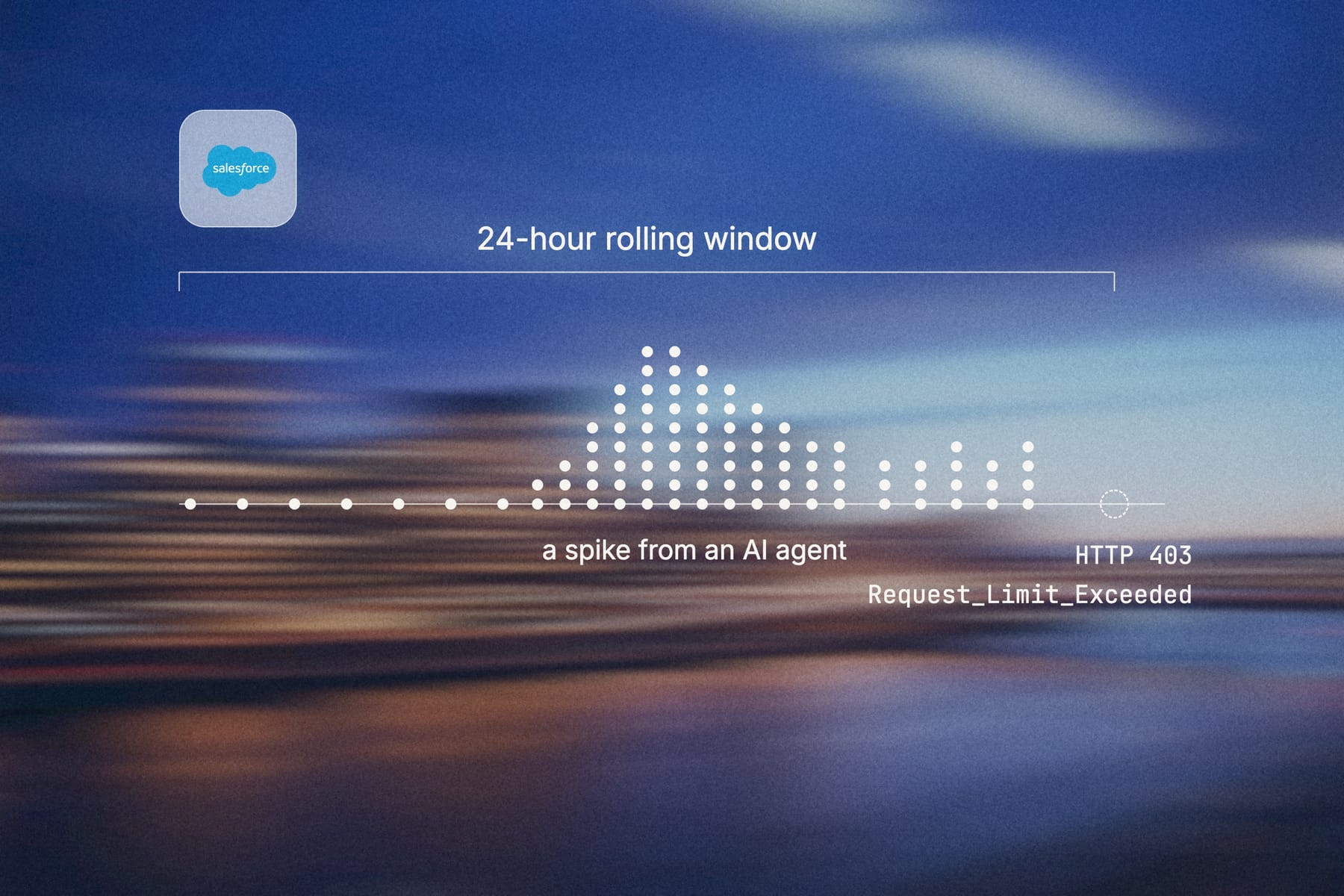
Salesforce API limits define how many API requests your organization can make within a 24-hour rolling window. When AI agents read, search, update, and verify records through Salesforce, each unoptimized call can consume part of that daily allocation.
Hitting that ceiling in production can then stall integrations and block real work. To prevent this, you need to measure current usage, cut unnecessary API requests, and consolidate agent actions before they cause production errors. Below, you'll learn exactly how these limits are calculated, how to check your usage, and the patterns that keep agents inside a quota.
Key Takeaways
- Salesforce calculates API limits over a 24-hour rolling window, so a spike from an AI agent can affect integrations long after the first burst of traffic.
- Your actual limit depends on your edition, user licenses, add-ons, and Salesforce's current entitlement rules, so verify usage in your organization rather than assuming a static number.
- Composite API, batched requests, delta queries, and caching collapse repeated reads and writes into fewer operations, which cuts API consumption.
- An HTTP 403 is not the only error you can hit. "Request_Limit_Exceeded" usually appears as an HTTP 403, but heavy agent workflows can also reach concurrency, timeout, or service availability limits before the daily quota is fully consumed.
- Engini gives AI agents one managed execution layer across Salesforce and enterprise systems, with scoped permissions and a full audit trail.
Exploring the Baseline API Usage Limits of Salesforce
Salesforce API limits are usage caps that protect the platform's multi-tenant architecture and keep each organization within its licensed allocation. For most integration teams, the key metric to track here is total API request limits during the last 24 hours.
But before you go ahead and adjust how much API traffic your agents generate, you should know that:
- The window rolls continuously instead of resetting on a calendar day.
- Your organization's limit depends on edition, user licenses, and entitlements.
- Different APIs can have different limits.
- Daily request limits are separate from concurrency, timeout, and bulk API limits.
- You can check API usage in the Salesforce UI, through REST API endpoints, and via response headers.
How Agent Traffic Can Affect Your Capacity Planning
For agentic workflows, the agent's call pattern is often less predictable than deterministic middleware. For example, a single user instruction can create reads, record lookups, permission checks, related object searches, updates, and verification calls.
Data storage limits are also separate from API request limits. Your organization can have available API capacity and still face storage constraints, or it can have storage headroom while API requests are exhausted. So, make sure to treat these as separate operational limits when you monitor and plan capacity.
Daily Request Allocations by Salesforce Edition
The number of API calls Salesforce allows is not one flat number for every organization. Instead, Salesforce calculates the daily allocation based on your edition and license mix.
Salesforce Developer Edition
Salesforce's official limits table lists Developer Edition at 15,000 API requests per 24-hour period.
Enterprise and Unlimited Edition
Enterprise Edition and Unlimited Edition organizations use license-based allocations. That means the correct production number comes from your organization's entitlements instead of a sandbox or a single test environment.
Professional Edition
Professional Edition also needs direct verification. Depending on your organization configuration and entitlements, API access and usage behavior may differ from an Enterprise Edition or Unlimited Edition production organization.
What This Means for AI Agents
When using AI agents, you should treat the daily allocation as shared capacity. This means each agent does not get a separate pool unless your Salesforce contract and setup explicitly provide one. Additionally, other integrations, dashboards, ETL jobs, middleware, mobile clients, and internal automations can all draw on the same organization-level API limit.
How Concurrency and Timeout Limits Affect Agent Traffic
Daily Salesforce API limits are only one way things can break. Salesforce also documents concurrent request and timeout thresholds that your agents can hit even with a quota to spare.
For example, a reasoning loop may launch account, contact, opportunity, and task searches, wait for results, fetch related records, and then retry when a response comes back slowly. So, even if your organization still has some API requests left, those long-running calls can put pressure on concurrent requests and timeout thresholds.
SOQL Query Timeouts
SOQL query timeouts are a related operational risk. An agent that generates broad SOQL filters, searches too many related objects, or repeats exploratory queries can waste daily quota while also increasing latency. Fewer calls alone won't fix the issue, so you also need narrower queries, indexed filters where possible, and clearer retrieval boundaries.
Timeout limits also need separate monitoring. If an operation approaches a 10-minute timeout threshold in your Salesforce environment or connected client, the agent may retry while the original work is still unresolved. That can create duplicate pressure on API quota, concurrency, and downstream queues.
In production, you usually see this as a mixed symptom set. Some calls return slowly, some fail, and the integration queue starts backing up. And even though the API limit may be part of the problem, concurrency and timeout behavior can be the first visible signal.
Bulk API 2.0 Ingest Limits
Bulk API 2.0 is Salesforce’s API for high-volume asynchronous data loading. It’s built for large inserts, updates, upserts, deletes, and query jobs where standard REST API calls would create too much request overhead.
Salesforce lists Bulk API 2.0 limits separately from standard REST API request limits, including an official ingest limit of 150 million records per 24-hour period.
That does not make Bulk API 2.0 the right choice for every agent action, though. It’s effective for high-volume loads, sure, but it’s not a substitute for low-latency single-record decisions. Because of this, we recommend that you use it when the workload is batch-oriented, the destination operation supports asynchronous processing, and the user does not need an immediate transactional response.
Checking Your API Rate Limit and Current Usage
You can check Salesforce API rate limit usage in the UI, through the REST API limits endpoint, and through limit tracking headers. In a live incident, make sure to use all three because each view gives you a different perspective:
- The UI gives you a quick human-readable view.
- The REST endpoint returns a structured limit object for your monitoring system.
- Limit tracking headers let you see usage right near the call site.
Additionally, make sure to also use these checks to see how much of your API quota is already in use:
- In "Salesforce Setup", open "System Overview" to view organization-level usage indicators.
- In "Salesforce Setup", go to "Company Settings" → "Company Information" and review API request usage where available for your organization.
- In "Setup Quick Find", search for "Usage-Based Entitlements" to review entitlement consumption tied to your organization.
- Call "/services/data/vXX.X/limits/" to retrieve current REST limit information.
- Inspect limit tracking headers from API responses when your HTTP client or SDK exposes them.
A Few Notes on Apex
For Apex-based checks, "System.OrgLimitMap" can expose organization limit data, and "DailyApiRequests" is the limit name commonly used when checking daily API consumption. Keep this separate from request-level handling, since Apex visibility helps internal diagnostics while external agent clients still need API-side monitoring.
Diagnosing 403 Errors
When diagnosing a live 403 "Request_Limit_Exceeded" error, start with these three questions:
- Which client or integration is consuming the most requests?
- Did usage spike in the last 24 hours, or has it been steadily increasing?
- Are failed retries multiplying the same request pattern?
That last question is particularly relevant for agents as a retry loop can turn one failed lookup into repeated calls against the same object. If the agent also asks for adjacent records each time, the call volume grows while the business action still remains incomplete.
The Negative Impact of Reaching the API Limit
When your organization reaches its daily Salesforce API limit, clients can receive a "Request_Limit_Exceeded" error message, known as "HTTP 403".
The main concern here is that this error rarely affects only one workflow. The same Salesforce organization often supports customer operations, reporting, internal tools, ETL jobs, middleware, and agentic workflows, so once the shared limit is exhausted, the next API caller can fail even if it was not the source of the spike.
Reading Status Codes Before You Change Retries
A "503 Service Unavailable" response should be triaged separately. It can appear in API client logs during service availability or infrastructure pressure, but it does not mean the same thing as "Request_Limit_Exceeded". Due to this, we recommend treating the status code, Salesforce error body, endpoint, and timing as separate signals before you change retry behavior.
Note: No third-party tool can bypass Salesforce's hard API limits. Tools can only reduce request volume, schedule work, consolidate calls, cache reads, and route workloads to the right Salesforce API.
Why AI Agents Exhaust API Limits Quickly
AI agents can consume Salesforce API limits faster than deterministic integrations because they often reason through work step by step. A deterministic workflow might read one account, update one opportunity, and stop. In contrast, an agent may inspect context, fetch related records, validate a field, ask for more data, and then verify the outcome.
Without strict tool boundaries and batching, however, this workflow can quickly grow into a large number of API requests. Consider this hypothetical prompt: “Prepare this renewal account for approval and update the next step.” An unoptimized agent could turn that into:
- Search for the account by name.
- Read the account record.
- Fetch open opportunities.
- Read the primary contact.
- Fetch recent tasks.
- Query renewal history.
- Check related cases.
- Read approval status.
- Update the opportunity.
- Re-read the opportunity to verify the write.
- Create a task.
- Re-read the task to confirm creation.
And so, that single prompt can produce a dozen Salesforce calls before retry logic, related-object expansion, or error handling can even enter the picture. Run that same agent across hundreds of records, and the call pattern will scale fast.
What’s more, there's a second risk hiding in those reasoning loops. When the agent does not get enough context from the first call, it keeps asking Salesforce for adjacent data, and broad queries, repeated lookups, and "verify after every step" habits can drain quota even when each call is valid.
Autonomous multi-step actions therefore need different controls than a static integration job. Here, you need a way to constrain tools, define which records can be touched, batch predictable operations, and stop repeated calls when the same answer already sits in the cache.
Exploring Solutions for Enforcing API Rate Limits
Handling SFDC API limits starts with request design rather than retries. Retries help after transient errors, but they do not solve total API request limits when the agent is making too many valid calls.
An actionable rate limiting plan has four layers:
- Reduce calls by combining operations.
- Avoid repeated reads with delta queries and caching strategies.
- Move high-volume workloads to Bulk API 2.0.
- Add backoff, alerting, and circuit breakers before your organization reaches the limit.
This is also where the architecture needs to separate source events from completed writes. A Salesforce change event or webhook-like trigger can start work, but the destination action still needs validation, permission checks, duplicate handling, and an auditable result.
Consolidating Calls with the Composite API
The Composite API lets you combine multiple REST API operations into one request. That changes the shape of agent traffic, since instead of sending separate REST API calls for each related read or write, you can now package supported operations into one composite request. Composite API sub-requests can also reference results from earlier sub-requests when the chosen composite resource supports that pattern.
For an agent workflow, this helps in three key ways:
- The agent makes fewer outbound calls to Salesforce.
- The execution plan becomes more explicit because related operations sit in one request structure.
- Error handling can be centralized around the composite response instead of scattered across separate calls.
Note: Composite API is highly effective for single-system workflows inside Salesforce, but it's not a reason to ignore governance. The agent still needs scoped permissions, object boundaries, field controls, and destination-system validation.
When to Use Composite API Versus REST
Use Composite API when the work is related, low enough in volume for synchronous handling, and easier to reason about as one grouped operation. Use standard REST API calls when the agent needs a simple record read, a narrow update, or a low-latency operation that does not benefit from grouping.
Implementing Delta Queries for Data Retrieval
Delta queries reduce API consumption by asking for changed data instead of re-reading everything. In Salesforce architecture, that usually means designing retrieval around modification timestamps, change signals, or stored sync cursors where your implementation supports them.
The important thing to note here is ownership of state. Your agent should not rediscover the same records on every run, but the application layer should instead know what it has already seen, when it last synced, and which objects need a fresh read.
Caching strategies help when the same context appears across agent sessions. For example, reference data, field mappings, allowed values, and stable account attributes should not require repeated live reads during every reasoning loop.
Here, we recommend using the below controls carefully:
- Cache stable context outside the prompt.
- Set clear time-to-live rules for data that changes.
- Store the last successful sync position for batch reads.
- Revalidate before controlled writes.
- Avoid caching permission decisions that should be checked at execution time.
Note: Delta queries and caching do not replace Salesforce permissions. While they reduce repeated reads, the write still needs authorization, validation, and duplicate checks.
Moving High-Volume Loads to Bulk API 2.0
We recommend moving to Bulk API 2.0 once you identify the workload as asynchronous, high volume, and unsuitable for one-record REST API updates. The baseline Bulk API 2.0 limits are covered earlier, so the real decision is which work should move into a controlled bulk job.
For agent-driven systems, the agent should not generate one write call per record when the work can be queued, grouped, and monitored as a batch-oriented operation. This is because batching and batched requests can reduce API pressure by moving repeated operations into fewer jobs or grouped calls.
At the end of the day, your choice depends on the workload you are handling:
- Use Composite API for related synchronous work.
- Use Bulk API 2.0 for high-volume asynchronous data movement.
- Use the standard REST API for narrow, low-volume interactions.
- Use cached reads when the same context repeats.
- Use delta retrieval when only changed data matters.
Note: Bulk API 2.0 planning should also account for the maximum job limits Salesforce enforces. Moving work into bulk jobs reduces one-record REST traffic, but you still need to monitor job creation, job status, failed batches, and retry behavior.
Additionally, do not move every agent action to Bulk API 2.0. If a user expects an immediate outcome, or if the transaction needs synchronous validation before the next step, a composite API or REST API may be the better fit.
How Engini Helps With API Limits
Engini helps you keep agent call volume under control when the work reaches across Salesforce and your systems of record. Our tool gives your agents one managed execution layer with scoped permissions and a full audit trail.
For example, when a Salesforce opportunity closes, you can use Engini to coordinate the follow-up action in NetSuite through the same managed layer, with scoped permissions and an audit trail across both systems.
Bringing Your Salesforce API Strategy Together
Salesforce gives you strong native tools for managing API volume. Composite API, Bulk API 2.0, usage monitoring, and limit headers can all reduce request load when the workflow stays mostly inside Salesforce.
The difficulty comes when an agent works across Salesforce and other systems of record. A source event in Salesforce may need to trigger a controlled action in an ERP, so scoped permissions, management, auditability, and error handling across systems all come into play. And while you can build that middleware yourself, your team then owns the connector code, version changes, auth handling, retry rules, and monitoring.
For agent call volume, your next decision is where you want agent execution controlled. If the workflow is small and stays inside Salesforce, native APIs and careful batching may be enough. If the agent reaches across Salesforce and other systems of record, that control point has to do more than count requests, since it must also coordinate execution, policy, and error handling across every system involved.
Agent gateway
Ship agents into systems you can’t afford to break
Agent gateway and workflow automation on one iPaaS core: MCP, SDK, API, or canvas, with secure auth, audit trail and tool permissions built in.
Frequently Asked Questions
Do Salesforce API limits reset at midnight?
No. Salesforce uses a 24-hour rolling window for API request limits rather than a fixed midnight reset, so requests age out of the calculation over time, based on when they were made.
During an incident, waiting for midnight may not restore capacity, so make sure to identify the request spike, stop unnecessary retries, and watch usage fall as older requests leave the rolling window.
Can a sandbox environment have different API limits than production?
Yes, limits can vary by organization type, edition, license mix, and entitlement. Make sure not to treat full sandbox limits as proof of production capacity without checking the actual limits for each organization.
The safe practice is to verify each environment directly. In "Salesforce Setup", check "Company Information" and "Usage-Based Entitlements" where available, and call the "/services/data/vXX.X/limits/" endpoint for the organization you are testing.
Do Apex callouts count against the same limit as inbound API requests?
Apex callouts and inbound API requests fall under different limit categories. Apex callout limits apply inside Salesforce execution, while inbound REST API, SOAP API, and related API traffic consume your organization's API request capacity according to Salesforce's documented API limits.
For agent-driven designs, we recommend keeping both in view. An agent may call Salesforce from outside your organization, while Salesforce automation may call external systems from inside Apex, so each path needs its own limit monitoring.
Can a streaming API or Pub/Sub API reduce polling?
Event-driven patterns can reduce polling when the workflow only needs to react to changes. Instead of repeatedly querying Salesforce for updates, the application can subscribe to relevant change signals where your Salesforce setup supports that approach.
Streaming API limits and Pub/Sub API limits still need monitoring, though. After an event arrives, the application may still need reads, enrichment, writes, or cross-system execution – and those follow-up actions can still consume API capacity.
Can a tool bypass Salesforce’s hard API limits?
No. A tool can optimize request volume, consolidate calls, cache reads, schedule work, and stop wasteful retries, but not break through hard limits.